 IP
IPPort Checker
Test whether any TCP port is open, closed, or filtered on any server or IP address. Verify firewall rules, diagnose connection failures, and confirm services are externally accessible — instantly, free, no signup.
Hero, guides, and sidebar links below work without JavaScript. The interactive checker needs JavaScript enabled in your browser.
What Is a Port Checker and How Does It Work?
A port checker tests whether a specific TCP port on a remote host is open and accepting connections, closed and actively refusing them, or silently filtered by a firewall with no response at all. It does this by attempting a real TCP connection — the same process your browser uses when connecting to a website — and reporting the result based on how (or whether) the target host responds.
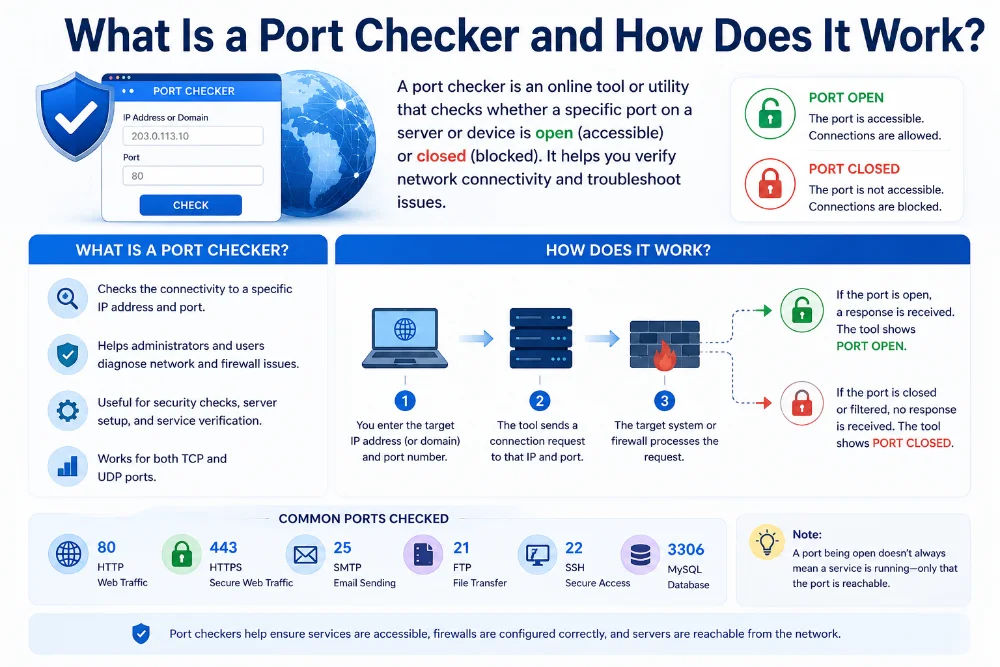
Every service running on a server — web, SSH, database, mail — listens on a specific port number. A port checker tells you whether that port is reachable from the internet
When you click "Check Port," our tool initiates a TCP three-way handshake from our server to the target host and port. This is exactly how any client (a browser, SSH client, or database driver) connects to a service — making the test a genuine real-world connectivity check, not a simulation. The result reflects what any external client on the internet would experience when trying to reach that host and port.
The TCP Three-Way Handshake — What Actually Happens
Understanding the handshake explains the three possible results clearly:
│ │
│──── SYN ──────────────────────────▶│ "I want to connect"
│ │
PORT OPEN:
│◀─── SYN-ACK ──────────────────────│ "Connection accepted"
│──── ACK + RST ───────────────────▶│ Handshake complete → OPEN
│ │
PORT CLOSED:
│◀─── RST ──────────────────────────│ "Connection refused" → CLOSED
│ │
PORT FILTERED:
│ [timeout] │ No response → FILTERED
External vs local testing: Our tool checks port connectivity from our server — the same perspective as any user on the internet. This is different from running netstat or ss on your server locally, which shows what ports are listening but not whether they're reachable from outside your firewall or network.
Open, Closed, and Filtered — What Each Result Means
A port check returns one of three possible states. Understanding the distinction between them is the difference between knowing exactly what to fix versus guessing:
The Critical Difference: Closed vs Filtered
Many users confuse "closed" and "filtered" — but they indicate completely different problems with different fixes:
- Closed means the firewall is allowing the connection but no service is answering. Fix: start the service, check it's bound to the right IP/port, check for crashes.
- Filtered means the firewall is blocking before the connection reaches the service. The service may be running perfectly — it just isn't reachable. Fix: update firewall rules, check security group settings, check ISP port blocks.
Running sudo netstat -tlnp | grep :PORT (Linux) or netstat -ano | findstr :PORT (Windows) on your server will confirm whether a service is listening on the port — if it is but the port checker shows filtered, your firewall is the problem.
Complete Port Number Reference — 60 Essential Ports Explained
Port numbers are divided into three ranges by IANA (Internet Assigned Numbers Authority). Understanding which range a port falls in tells you immediately what kind of service it likely hosts:
Web & Application Ports
| Port | Protocol | Service | Description | Security Risk |
|---|---|---|---|---|
| 80 | TCP | HTTP | Standard unencrypted web traffic. All websites used this before HTTPS became mandatory. Still used for HTTP→HTTPS redirects. | Low |
| 443 | TCP | HTTPS | Encrypted web traffic via TLS/SSL. The standard port for all secure websites, APIs, and web applications. | Standard |
| 8080 | TCP | HTTP Alt | Alternative HTTP port used by development servers, Java application servers (Tomcat, JBoss), and proxies when port 80 is in use. | Medium |
| 8443 | TCP | HTTPS Alt | Alternative HTTPS port for development environments and application servers. Common in Tomcat and Kubernetes ingress configurations. | Low |
| 8888 | TCP | HTTP Dev | Commonly used by Jupyter Notebook, development HTTP servers, and web proxies. Often exposed accidentally on production servers. | Medium |
| 3000 | TCP | Node.js / Dev | Default port for Node.js/Express applications, React development server, and Grafana dashboards. Should never be internet-exposed. | High if exposed |
Remote Access & Administration Ports
| Port | Protocol | Service | Description | Security Risk |
|---|---|---|---|---|
| 22 | TCP | SSH | Secure Shell — encrypted remote terminal access to Linux/macOS servers. One of the most heavily probed ports on the internet. Move to a non-standard port or restrict to known IPs using firewall rules. | Very High |
| 23 | TCP | Telnet | Unencrypted remote terminal access. Completely insecure — all credentials and session data transmitted in cleartext. Should never be open on any public-facing server in 2025. | Critical |
| 3389 | TCP | RDP | Windows Remote Desktop Protocol. Extremely heavily targeted by ransomware operators and brute-force bots. Never expose to the internet directly — use a VPN or firewall IP restriction. | Critical |
| 5900 | TCP | VNC | Virtual Network Computing — graphical remote desktop. Older VNC servers have serious authentication vulnerabilities. Should only be accessible via encrypted tunnel (SSH port forwarding). | Critical |
| 2222 | TCP | SSH Alt | Alternative SSH port commonly used to reduce automated brute-force attempts. Security through obscurity — still requires strong keys and fail2ban. | Medium |
Email Ports
| Port | Protocol | Service | Description | Notes |
|---|---|---|---|---|
| 25 | TCP | SMTP | Server-to-server email delivery (MTA to MTA). Most ISPs and cloud providers block outbound port 25 from residential and VPS connections to prevent spam. If closed, your server cannot receive mail directly from other mail servers. | ISP often blocks |
| 465 | TCP | SMTPS | SMTP over TLS — legacy submission port for email clients. Deprecated in 2018 by RFC 8314 in favour of port 587, but still widely supported by major providers. | Legacy TLS |
| 587 | TCP | SMTP Submission | The current standard port for email client-to-server submission (STARTTLS). Use this port in your email client or SMTP relay settings. Gmail, Outlook, and Zoho Mail all support this. | Standard |
| 110 | TCP | POP3 | Post Office Protocol v3 — downloads email from server to client. Unencrypted. Use port 995 (POP3S) instead. | Unencrypted |
| 143 | TCP | IMAP | Internet Message Access Protocol — synchronises email across devices. Unencrypted. Use port 993 (IMAPS) instead. | Unencrypted |
| 993 | TCP | IMAPS | IMAP over TLS — the secure, modern standard for email client synchronisation. This is the port your email app should use. | Standard |
| 995 | TCP | POP3S | POP3 over TLS — encrypted email download. Use instead of port 110. | Standard |
Database Ports
| Port | Protocol | Service | Description | Security Risk |
|---|---|---|---|---|
| 3306 | TCP | MySQL / MariaDB | Default MySQL and MariaDB database port. Should never be open to the internet. Restrict to localhost (127.0.0.1) or bind to internal network interface only. | Critical if public |
| 5432 | TCP | PostgreSQL | Default PostgreSQL port. Same rule as MySQL — bind to localhost only. If remote access is needed, use SSH port forwarding or a VPN rather than exposing this port publicly. | Critical if public |
| 1433 | TCP | Microsoft SQL Server | Default port for MSSQL. Commonly targeted by ransomware and automated exploits. Should be behind a VPN with IP restrictions. | Very High |
| 27017 | TCP | MongoDB | Default MongoDB port. Thousands of MongoDB databases are exposed publicly without authentication — a frequent cause of large data breaches. Restrict to localhost immediately. | Critical if public |
| 6379 | TCP | Redis | Default Redis port. Redis has no authentication by default in older versions and is commonly exposed publicly by misconfigured Docker deployments. Bind to 127.0.0.1 only. | Critical if public |
| 5984 | TCP | CouchDB | Default CouchDB port. Has a web-based admin interface (Fauxton) that should never be internet-facing. | High if public |
| 9200 | TCP | Elasticsearch | HTTP API for Elasticsearch. Older versions had no authentication — exposed Elasticsearch instances have caused major data leaks. Bind to internal interfaces and use X-Pack security. | Critical if public |
Network Infrastructure Ports
| Port | Protocol | Service | Description | Security Risk |
|---|---|---|---|---|
| 53 | TCP/UDP | DNS | Domain Name System — resolves domain names to IP addresses. UDP/53 is used for queries; TCP/53 is used for zone transfers and large responses. Restrict TCP zone transfers to authorised secondary DNS servers only. | Medium |
| 67/68 | UDP | DHCP | Dynamic Host Configuration Protocol — assigns IP addresses to devices. Port 67 is the server; 68 is the client. Internal network only. | Internal |
| 161/162 | UDP | SNMP | Simple Network Management Protocol — monitors and manages network devices. SNMPv1/v2 transmit community strings (effectively passwords) in cleartext. Use SNMPv3 with encryption and restrict to management networks. | High |
| 389 | TCP | LDAP | Lightweight Directory Access Protocol — queries directory services like Active Directory. Unencrypted. Use LDAPS (port 636) with TLS instead. | High |
| 636 | TCP | LDAPS | LDAP over TLS — secure Active Directory and LDAP queries. Required when integrating applications with enterprise directories. | Standard |
| 123 | UDP | NTP | Network Time Protocol — synchronises system clocks across the internet. NTP amplification attacks use open NTP servers for DDoS. Restrict to trusted time sources. | Medium |
| 514 | UDP | Syslog | System log forwarding. Unencrypted and unauthenticated in standard form. Restrict to internal network and use syslog-ng/rsyslog with TLS for secure log forwarding. | High if public |
File Transfer & Sharing Ports
| Port | Protocol | Service | Description | Security Risk |
|---|---|---|---|---|
| 21 | TCP | FTP | File Transfer Protocol — control connection. Transmits credentials in cleartext. Should be replaced with SFTP (SSH, port 22) or FTPS (FTP over TLS, port 990). Still widely used for legacy hosting control panels. | High |
| 20 | TCP | FTP Data | FTP data transfer channel (active mode). The FTP server initiates data connections back to the client on this port. | High |
| 990 | TCP | FTPS | FTP over TLS — explicit or implicit TLS for secure file transfers. More compatible with firewalls than SFTP. | Low |
| 445 | TCP | SMB | Server Message Block — Windows file sharing, Active Directory, and printer sharing. One of the most dangerous ports to expose publicly — EternalBlue, WannaCry, and NotPetya all exploited SMB. Never open to the internet. | Critical |
| 139 | TCP | NetBIOS SMB | Legacy SMB over NetBIOS. Should be blocked at all perimeter firewalls. Modern Windows uses port 445 directly. | Critical |
Monitoring, DevOps & Container Ports
| Port | Protocol | Service | Description | Security Risk |
|---|---|---|---|---|
| 2375 | TCP | Docker API (HTTP) | Docker remote API without TLS. If open to the internet, any attacker can take full control of the host via Docker. Should only ever be exposed with TLS (port 2376) on trusted networks. | Critical |
| 2376 | TCP | Docker API (TLS) | Docker remote API with mutual TLS authentication. Still restrict to management IPs — Docker daemon access means root access to the host. | High |
| 6443 | TCP | Kubernetes API | Kubernetes API server. Must be protected by TLS and RBAC. Exposed Kubernetes dashboards (default port 8001 or 8080) have caused major breaches including cryptomining incidents. | Critical |
| 9090 | TCP | Prometheus | Prometheus metrics server. Should never be internet-facing — it exposes detailed system metrics and may contain sensitive configuration data. | High if public |
| 3000 | TCP | Grafana | Default Grafana dashboard port. Requires authentication but should still be behind a reverse proxy (nginx/Caddy) with HTTPS rather than exposed directly. | Medium |
| 9100 | TCP | Node Exporter | Prometheus node_exporter — exposes host metrics. Should only be accessible from your Prometheus server IP. | High if public |
Port Troubleshooting Guide — Fix Every Scenario
The port checker result tells you which layer of the network stack to fix. Here is the complete troubleshooting path for every possible outcome:
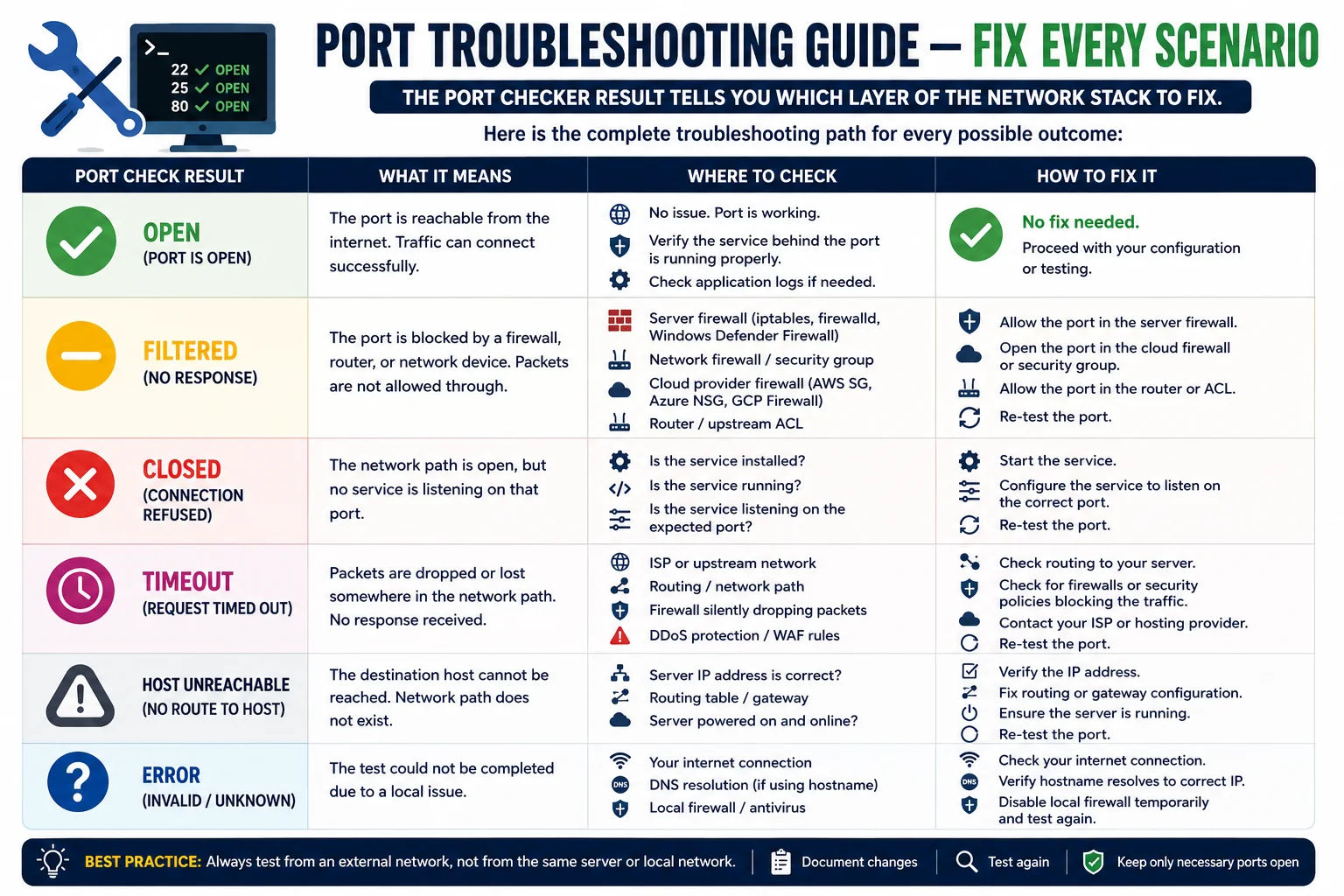
Port troubleshooting always starts with identifying which layer — application, firewall, router, or ISP — is the actual problem
- Check the service is running:
systemctl status nginx/ss -tlnp | grep :80 - Verify it's bound to the right interface —
0.0.0.0for all, not just127.0.0.1 - Check the config file for listen address / port settings
- Look for port conflicts:
ss -tlnp | grep :PORT - Check application logs for startup errors:
journalctl -u servicename -n 50 - Restart the service after config changes:
systemctl restart servicename
- Check Linux firewall (iptables):
iptables -L -n | grep PORT - Check UFW (Ubuntu):
ufw status | grep PORT— allow withufw allow PORT/tcp - Check firewalld (CentOS/RHEL):
firewall-cmd --list-ports - Check cloud security groups (AWS, GCP, Azure) — inbound rules for the port
- Check router/NAT — port forwarding rules pointing to correct internal IP
- Check with your ISP — ports 25, 135-139, 445 are often blocked at carrier level
- Find your server's local IP:
ip addr showoripconfig - Log into your router admin panel (usually 192.168.1.1 or 192.168.0.1)
- Go to Port Forwarding / NAT / Virtual Servers section
- Add rule: External port → Internal IP:Internal port, Protocol TCP
- Ensure your server has a static local IP (set DHCP reservation)
- Test using your public IP, not your local 192.168.x.x address
- AWS EC2: Edit the Security Group inbound rules — add TCP rule for your port from 0.0.0.0/0 or specific CIDR
- GCP: VPC → Firewall Rules → create ingress rule with target tags and port
- Azure: Network Security Group → Inbound security rules → add port
- Also check the OS-level firewall (iptables/firewalld) on the instance itself
- Verify the service inside the instance is listening on 0.0.0.0 not 127.0.0.1
- Check Windows Firewall: Control Panel → System and Security → Windows Defender Firewall → Advanced Settings
- Create Inbound Rule: Rule Type = Port, Protocol = TCP, Port = your port, Action = Allow
- Verify the service is running:
netstat -ano | findstr :PORT - Check for any third-party firewall or endpoint security software blocking the port
- Check
netsh advfirewall firewallfor any blocking rules
- Common blocked ports: 25 (SMTP), 135–139 (NetBIOS), 445 (SMB), 23 (Telnet)
- Jio and Airtel block port 25 by default on all residential and mobile connections
- Contact your ISP to request port 25 unblocking for legitimate mail server use
- For residential connections, ISP-blocked ports generally cannot be bypassed
- Consider using an alternative port (587 instead of 25 for email submission)
- Business/commercial internet connections typically have fewer port restrictions
How to Check Ports From the Command Line
While this online tool checks port connectivity from the outside (as an external client sees it), you sometimes also need to verify what's happening locally on your server. Here are the essential commands for every platform:
Linux — Check Listening Ports
ss -tlnp # Modern — shows port, PID, process name
netstat -tlnp # Legacy (install net-tools if missing)
# Check a specific port
ss -tlnp | grep :3306 # Is MySQL listening?
ss -tlnp | grep ':22 ' # Is SSH listening? (note the space)
# Test TCP connection to a remote host:port (like a port checker)
nc -zv example.com 443 # Netcat: -z scan, -v verbose
timeout 3 bash -c "</dev/tcp/example.com/443" && echo "OPEN" || echo "CLOSED"
# Check firewall rules
iptables -L INPUT -n --line-numbers | grep 80
ufw status numbered
Windows — Check Listening Ports
netstat -ano | findstr LISTENING
netstat -ano | findstr :3389 :: Check specific port
:: Find which process is using a port
netstat -ano | findstr :80 :: Get PID from last column
tasklist | findstr <PID> :: Look up process name
:: Test TCP connection (PowerShell)
Test-NetConnection -ComputerName example.com -Port 443
Test-NetConnection -ComputerName 8.8.8.8 -Port 53 -InformationLevel Quiet
:: Check Windows Firewall rules for a port
netsh advfirewall firewall show rule name=all | findstr "LocalPort"
macOS — Check Listening Ports
sudo lsof -iTCP -sTCP:LISTEN -P -n
sudo lsof -i :8080 # Check specific port
# Test TCP connection to remote port
nc -zv example.com 443
curl -o /dev/null -s -w "Port test: %{http_code} " http://example.com:8080/
Key difference: Local commands (netstat, ss, lsof) tell you what's listening on the server itself. Our online port checker tells you what's reachable from the internet. A service can be listening locally but still show as filtered externally if a firewall is blocking it. You need both to fully diagnose a port issue.
When to Use a Port Checker — 8 Real-World Scenarios
A port checker is one of the most versatile tools in a DevOps, sysadmin, or developer's toolkit. Here are the eight most common situations where it saves significant troubleshooting time:
Port Security Best Practices — What Should and Shouldn't Be Open
Port hygiene is one of the most impactful and often overlooked aspects of server security. The principle of least privilege applied to ports means: only open the ports that are absolutely necessary for the server's function, and restrict those that are open to specific IP ranges wherever possible.
The Minimum Necessary Open Ports by Server Type
| Server Type | Should Be Open | Should Be Closed / Restricted |
|---|---|---|
| Web Server | 80 (HTTP redirect), 443 (HTTPS) | 22 (restrict to your IP), 3306, 5432, 6379 (localhost only) |
| Mail Server | 25, 465/587, 993/995 | 22 (restrict), 3306 (localhost), all other ports |
| Database Server | 3306/5432 only from app server IPs | Everything else including 22 (VPN only) |
| Game Server | Game-specific UDP/TCP ports | 22 (restrict), admin ports |
| Dev / Staging | 80, 443, 8080, 8443 | Admin ports, databases — IP-restricted only |
| Home Server / NAS | As few as possible | 3389 (use VPN), 23, 445, all databases |
Ports That Should NEVER Be Open to the Internet
These ports are routinely probed by automated scanners and exploited within minutes of being exposed. If our port checker shows any of these as open, take immediate action:
- Port 23 (Telnet) — Transmits credentials in cleartext. Replace with SSH immediately.
- Port 445 (SMB) — WannaCry, EternalBlue. Block at all external firewalls without exception.
- Port 3389 (RDP) — Continuously brute-forced and exploited by ransomware groups. Restrict to VPN or specific IPs only.
- Port 3306 / 5432 / 27017 / 6379 — Database ports exposed publicly have caused thousands of data breaches. Bind to 127.0.0.1 only.
- Port 2375 (Docker HTTP API) — Open Docker API = full root access to the host. Never expose without mutual TLS on 2376.
- Port 9200 (Elasticsearch) — Exposed without authentication in older versions. Responsible for numerous massive data leaks.
Security tip: Run this port checker against your own server once a month as part of your security hygiene routine. Automated scripts, Docker containers, and application updates can inadvertently open new ports. A monthly external port check costs 60 seconds and can prevent a serious breach.
Frequently Asked Questions — Port Checker
Complete answers to every common question about port checking, port states, firewall configuration, and TCP ports:
What is a port checker and what does it test?
A port checker tests whether a specific TCP port on a remote host is open, closed, or filtered. It does this by attempting a real TCP three-way handshake from our server to your target host and port — the same process a browser, SSH client, or any other TCP application uses when connecting. If the handshake completes, the port is open. If the host responds with a TCP RST (reset), the port is closed. If the connection times out with no response, the port is filtered by a firewall. The test takes 2–5 seconds for open and closed ports, and slightly longer for filtered ports due to the connection timeout.
What is the difference between a closed port and a filtered port?
This is the most important distinction in port checking. A closed port means the network path is clear and the host is reachable, but no service is listening on that port — the operating system responded with a TCP RST "connection refused" packet. Fix: start the service. A filtered port means a firewall, router ACL, or security group is silently dropping packets before they reach the host — the connection timed out with no response at all. Fix: update firewall rules or security group settings. The service may be running perfectly, but a firewall is blocking external access to it.
Why is my port showing filtered even though I opened it in my firewall?
There are multiple firewall layers between the internet and your service, and you may have only opened one. Common scenarios: (1) You updated your OS firewall (iptables/UFW/Windows Firewall) but forgot to update your cloud provider's security group (AWS, GCP, Azure). (2) You updated the cloud security group but not the OS firewall. (3) Your hosting provider has an additional perimeter firewall. (4) Your ISP is blocking the port at the carrier level (common for port 25). Check each layer systematically: cloud security group → OS firewall → application bind address. Also verify the service is bound to 0.0.0.0 not just 127.0.0.1 (localhost only).
How do I open a port on my server?
You need to take action at two levels: (1) The OS firewall — on Ubuntu/Debian use sudo ufw allow PORT/tcp; on CentOS/RHEL use sudo firewall-cmd --add-port=PORT/tcp --permanent && sudo firewall-cmd --reload; on Windows, create an Inbound Rule in Windows Defender Firewall. (2) If using a cloud server, also update the security group or network ACL in your cloud provider's dashboard (AWS Security Groups, GCP Firewall Rules, Azure Network Security Groups). Finally, ensure the service itself is listening on 0.0.0.0 (all interfaces) rather than 127.0.0.1 (localhost only). After making changes, test again with this tool.
Why is port 25 blocked on my server?
Port 25 (SMTP) is intentionally blocked on most residential ISP connections and many VPS/cloud provider networks by default to prevent spam. In India, Jio and Airtel block outbound port 25 on all residential and mobile connections. AWS, Google Cloud, and DigitalOcean also block port 25 by default on new accounts and require a support request to unblock it for legitimate mail server use. If you're setting up a mail server, use port 587 (SMTP submission with STARTTLS) for outbound mail from clients. For receiving mail from other servers (MX record delivery), you specifically need port 25 — contact your provider to request unblocking.
Is port scanning legal?
Checking ports on servers and systems you own or are authorised to test is completely legal and is a standard administrative and security practice. Running a port check against your own web server, mail server, or home network to verify firewall rules is no different from using ping — it's routine network diagnostics. However, scanning ports on systems you do not own and have no authorisation to test may violate the Computer Fraud and Abuse Act (USA), Computer Misuse Act (UK), and equivalent laws in most countries. Always ensure explicit written authorisation before testing systems you don't own.
What is the maximum port number? How many TCP ports are there?
TCP and UDP port numbers are 16-bit integers, so there are 65,535 valid port numbers (1–65535). Port 0 is reserved and not used for services. Ports 1–1023 are "well-known ports" reserved for system services and require root/administrator privileges to bind on Linux and macOS. Ports 1024–49151 are "registered ports" assigned to specific applications by IANA. Ports 49152–65535 are "dynamic" or "ephemeral" ports assigned by the OS for outbound connections (source ports).
What is the difference between TCP and UDP ports?
TCP (Transmission Control Protocol) is connection-oriented — it establishes a session via the three-way handshake before data transfer, guarantees delivery and order, and acknowledges receipt. This makes it reliable but slightly slower. TCP is used by web (HTTP/HTTPS), email (SMTP, IMAP), SSH, FTP, and databases. UDP (User Datagram Protocol) is connectionless — packets are sent without establishing a session, with no delivery guarantee or ordering. This makes it faster and lower-latency. UDP is used by DNS, gaming, video streaming, VoIP, and VPNs (WireGuard). This online port checker only tests TCP ports. UDP port testing requires a different approach because you can't test UDP connectivity the same way — our UDP Port Test tool handles UDP.
Why does the port show open here but I still can't connect?
If this tool shows a port as open but you still can't connect from your own machine, the problem is likely on your local network or ISP side: (1) Your ISP is blocking the port in the outbound direction from your connection — common for port 25, 445, and others. (2) Your local firewall (Windows Defender, macOS firewall, or a corporate network appliance) is blocking outbound connections to that port. (3) Your VPN is routing your traffic through a server that blocks certain ports. Since our tool tests from our server's network perspective, it confirms the target port is accessible from the internet — the block is therefore on your local network or ISP, not the target server.
Can I check UDP ports with this tool?
No — this tool tests TCP ports only. UDP port checking works differently because UDP is connectionless — there's no handshake, so you can't determine if a UDP port is open by simply initiating a connection. UDP testing requires sending a protocol-specific probe packet and analysing the response (or lack thereof). For UDP port testing, use our dedicated UDP Port Test tool, or use Nmap with the -sU flag for comprehensive local UDP scanning.
How do I check if port forwarding is working?
To test whether port forwarding on your home router is correctly configured: (1) Set up the port forward rule in your router's admin panel pointing the external port to your server's local IP and port. (2) Make sure the service is running on the server and listening on the correct port (use netstat -tlnp | grep :PORT). (3) Find your public IP address (use our What Is My IP tool). (4) Enter your public IP and port number into this port checker. If it shows open, the port forwarding is working. If filtered, check the router rule, the server's local firewall, and whether the service is running. Note: you must test with your public IP, not the local 192.168.x.x address.
Related Network Tools
Combine the port checker with these tools for complete network diagnostics and server troubleshooting: