
Ping Test
Measure round-trip time (RTT), detect packet loss, and verify whether any host, website, or IP address is reachable from the internet. See live ping results with per-packet latency, a visual bar chart, and a complete statistics summary. Free, no signup required.
Hero, guides, and sidebar links below work without JavaScript. The interactive checker needs JavaScript enabled in your browser.
What Is a Ping Test?
A ping test is the most fundamental network diagnostic tool available. It measures the round-trip time (RTT) - the time in milliseconds for a data packet to travel from your network to a remote host and back - and detects packet loss, which occurs when packets are sent but no reply is received. The name "ping" comes from sonar terminology: just as a submarine sends out a sound pulse and listens for the echo to detect objects, a network ping sends out a packet and listens for the reply to detect host reachability.
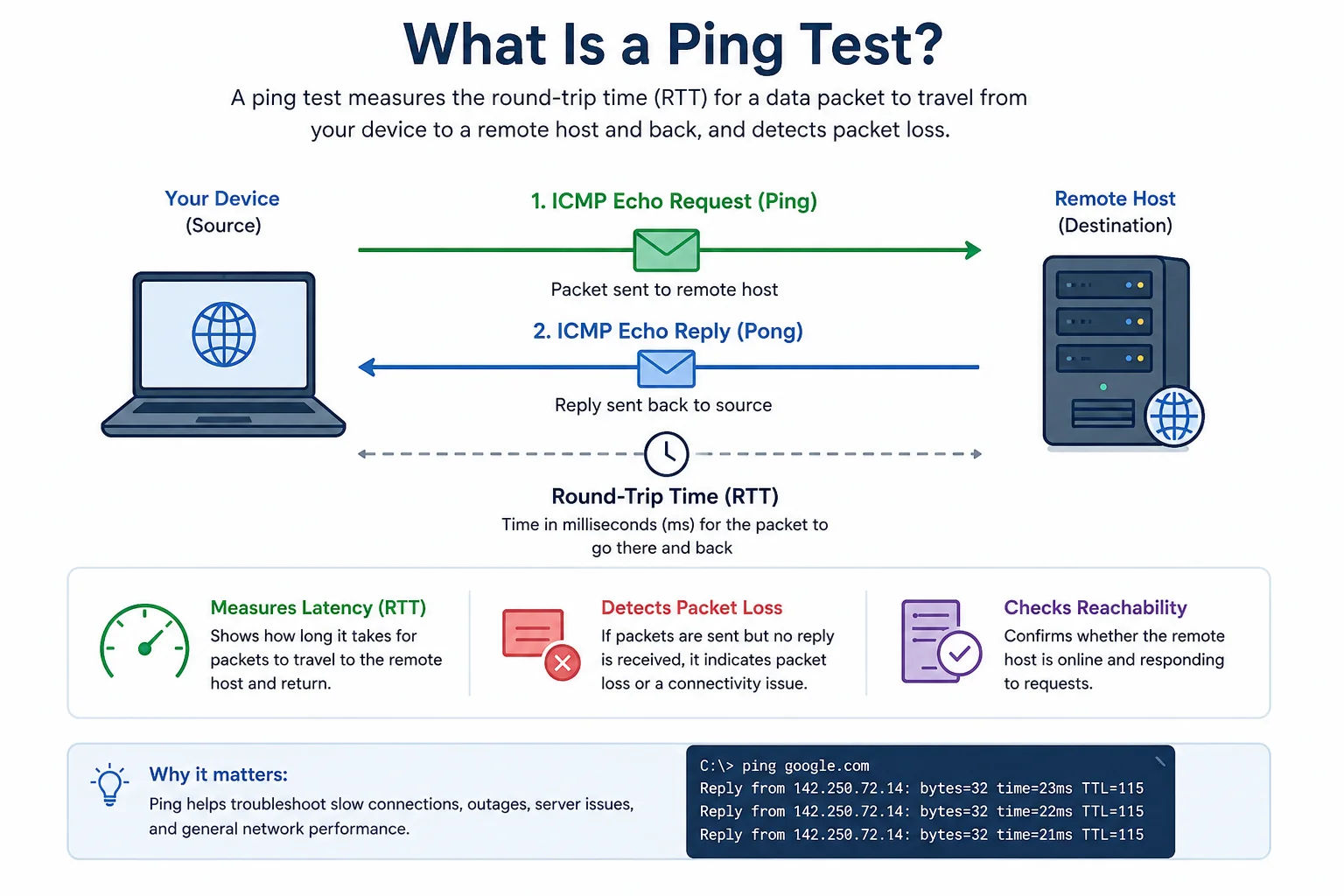
Ping measures the time for a packet to travel from our server to the target host and back - giving you a real-world latency reading from the internet's perspective
Traditional ping uses the ICMP (Internet Control Message Protocol) Echo Request and Echo Reply messages. Our online tool measures real HTTP/HTTPS response time from our server to the target - giving you the same practical answer (is this host reachable and how fast is it responding?) while working with servers that block ICMP for security reasons. This makes the results significantly more useful for diagnosing real-world web service reachability than raw ICMP ping.
Important distinction: This online tool pings from our server to the target host - not from your device to the target. This tells you whether the host is reachable from the internet and what the server-side latency looks like. To measure latency from your device, use the ping command in your terminal (Windows: Command Prompt or PowerShell; macOS/Linux: Terminal).
How ICMP Ping Works - The Technical Mechanism
Understanding how ping works at the protocol level helps you interpret results correctly and understand why ping can fail even when a server is running perfectly:
│ │
│──── ICMP Echo Request (seq=1, TTL=64) ──▶│ t=0ms
│◀─── ICMP Echo Reply (seq=1, TTL=55) ──│ RTT = 24ms
│ │
│──── ICMP Echo Request (seq=2, TTL=64) ──▶│ t=1000ms
│◀─── ICMP Echo Reply (seq=2, TTL=55) ──│ RTT = 22ms
│ │
│──── ICMP Echo Request (seq=3, TTL=64) ──▶│ t=2000ms
│ [firewall drops ICMP] │ Request timeout → Packet Loss
Key ICMP Fields Explained
- Sequence number (seq): Each packet gets an incrementing sequence number so the sender can match replies to requests and detect missing packets.
- TTL (Time To Live): Each packet starts with a TTL (typically 64 or 128). Every router it passes through decrements TTL by 1. If TTL reaches 0, the packet is discarded and a "Time Exceeded" ICMP message is sent back - this is how traceroute works. The TTL in the reply being lower than the TTL sent indicates how many router hops the packet traversed.
- Payload size: Standard ICMP ping sends 56 bytes of data (totalling 64 bytes with the ICMP header). The
ping -sflag changes this - larger payloads are useful for testing MTU issues. - ICMP type: Type 8 = Echo Request (sent). Type 0 = Echo Reply (received). Type 3 = Destination Unreachable. Type 11 = Time Exceeded (TTL=0).
Why Servers Block ICMP Ping
Many production servers, cloud instances, and CDN nodes are configured to silently drop ICMP Echo Requests. Common reasons: security hardening policies that block all non-essential traffic, AWS EC2 security groups that block ICMP by default, load balancers that don't pass ICMP to backend servers, and firewall rules that prioritise TCP/UDP traffic. A failed ICMP ping does not mean the server is down - it may be fully serving HTTP traffic while blocking ICMP.
Understanding Ping Results - What Every Metric Means
A ping test returns several metrics. Here is a precise explanation of each one, what the acceptable ranges are, and what high values indicate:
RTT (Round-Trip Time) - Latency Quality Guide
Packet Loss
Packet loss is the percentage of ping requests that received no reply. Even small amounts of packet loss have serious effects on real-world performance:
- 0% packet loss - ideal. All packets delivered. Stable connection.
- 1–2% packet loss - acceptable for most applications. Barely noticeable for browsing and streaming. Minor issue for gaming and VoIP.
- 2–5% packet loss - noticeable degradation. VoIP calls become choppy. Online games experience lag spikes and rubber-banding. Video calls stutter.
- 5–10% packet loss - serious problem. TCP connections slow dramatically due to retransmissions. Streaming may buffer. File downloads pause and resume.
- >10% packet loss - severe. The connection is effectively degraded. Real-time applications (gaming, video calls) become unusable.
Jitter
Jitter is the variation in RTT between successive ping requests. A stable connection has consistent RTT; high jitter means erratic, unpredictable latency. Jitter is calculated as the mean deviation of RTT values from the average. For real-time applications like VoIP and online gaming, jitter below 20ms is generally acceptable. Jitter above 50ms causes audio artifacts in calls and unpredictable behaviour in games even when average latency is low.
Min / Avg / Max RTT
Min RTT represents the best-case latency - the absolute minimum time the network path can deliver. Average RTT is the typical latency you experience. Max RTT reveals latency spikes - a large gap between average and maximum indicates congestion or routing instability. The formula: a max RTT 3× or more above min RTT suggests significant network jitter or intermittent congestion on the path.
Ping for Gaming - What Latency Numbers Actually Mean In-Game
Gaming latency requirements are much stricter than general web browsing. Here is exactly what different ping ranges feel like in competitive and casual gaming:
In competitive gaming, the difference between 20ms and 80ms is measurable in reaction time - a 60ms RTT advantage means your actions arrive at the server 60ms before your opponent's
India Gaming Ping Context
Indian gamers on Jio, Airtel, or BSNL broadband typically see these latency ranges to major gaming servers:
- Mumbai-region servers (AWS ap-south-1, Azure centralindia): 5–30ms - excellent for Indian servers
- Singapore servers: 70–120ms - typical for Southeast Asia game servers
- Tokyo / Seoul servers: 120–200ms - Korea/Japan game servers, noticeable lag
- European servers (Frankfurt, London): 150–220ms - major latency impact on FPS
- US East (Virginia): 180–260ms - very high for real-time gaming from India
- US West (California): 220–320ms - essentially unplayable for competitive gaming
For Jio users specifically: Jio's network performs well within India but often shows higher jitter on international paths than Airtel. If you're gaming on international servers, Airtel's Tier-1 peering agreements typically result in lower and more stable international latency than Jio.
When to Use a Ping Test - 8 Real-World Scenarios
Ping vs Traceroute vs Port Check - When to Use Each Tool
| Tool | What it tests | Use when | Limitation |
|---|---|---|---|
| Ping (this tool) | End-to-end reachability and RTT to a host | First step for any connectivity issue - is the host reachable and how fast? | Can't identify where on the path the problem is; blocked by ICMP-filtering firewalls |
| Traceroute | Every hop between you and the target, with RTT per hop | When ping fails or shows high latency - to find exactly which router on the path is causing the problem | Some intermediate hops block ICMP (show as *); final destination may still be reachable |
| Port Checker | Whether a specific TCP port on the host is open | When ping succeeds but the service isn't working - the web server may be stopped even though the host responds to ping | Only tests TCP; doesn't test UDP services or measure latency |
| Latency Test | Your connection's latency from your browser to our server | Testing your own connection quality before gaming, video calls, or remote work | Measures your local network, not a specific target server |
| DNS Lookup | Whether a domain resolves to the correct IP | When a website is unreachable and you want to check if DNS is the cause before pinging the IP | Only checks DNS resolution, not actual reachability |
Recommended diagnostic workflow: (1) Ping the target - if it responds, the host is reachable. (2) If ping fails, run Traceroute to find where packets stop. (3) If ping succeeds but the service is down, run a Port Check on ports 80 and 443. (4) If port is open but site still doesn't load, check DNS records and run HTTP Headers check.
Troubleshooting Ping Issues - Fix High Latency and Packet Loss
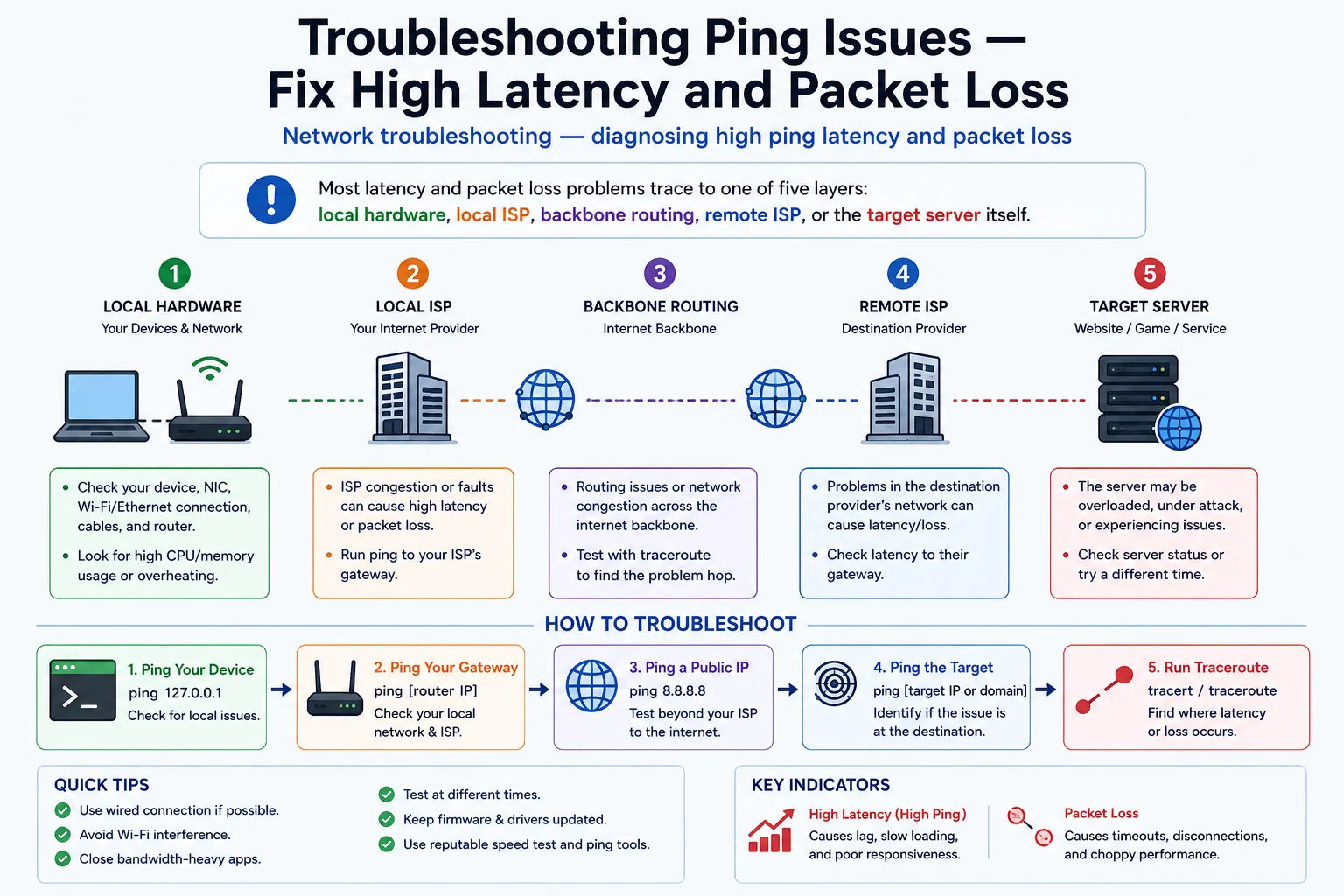
Most latency and packet loss problems trace to one of five layers: local hardware, local ISP, backbone routing, remote ISP, or the target server itself
- First try pinging 8.8.8.8 - if this succeeds, the problem is the target host's firewall or ICMP filtering
- If 8.8.8.8 fails: check your own internet connection
- Use Port Checker on port 80/443 - host may be up but blocking ICMP
- Run Traceroute to identify which hop the path breaks at
- Check if the host is down using Website Reachability tool
- Run Traceroute - identify which hop has the highest RTT increase
- Check if your ISP has congestion: ping 8.8.8.8 directly vs pinging via a VPN
- On Wi-Fi: switch to 5GHz or use Ethernet - 2.4GHz Wi-Fi adds 5–30ms of local latency
- Check if the target is geographically distant - cross-continental ping is typically 150–300ms
- Background downloads and uploads consume bandwidth and increase latency under load
- Run ping multiple times - intermittent packet loss is different from consistent loss
- Ping your router (192.168.1.1) - if you get packet loss there, the problem is your local network or router, not ISP
- On Jio/Airtel: check if the loss is during peak hours (6–11 PM) - congestion-based loss
- Wireless interference causes packet loss - test with Ethernet to isolate Wi-Fi as the cause
- Document packet loss with timestamps and report to your ISP with evidence
- High jitter (variable RTT) is often caused by network congestion or overloaded intermediate routers
- VPNs increase jitter - the extra encryption and routing hop adds variability
- Wireless interference dramatically increases jitter - switch to wired if possible
- QoS (Quality of Service) settings on your router can reduce jitter by prioritising real-time traffic
- For gaming and VoIP: jitter below 20ms is acceptable; above 50ms causes noticeable issues
- This is normal - many cloud servers (AWS EC2, GCP) block ICMP by default
- Use Port Checker on port 80/443 to verify the service is running
- To enable ICMP on AWS: Security Group → add inbound rule → type "All ICMP - IPv4" → source 0.0.0.0/0
- To enable on GCP: VPC → Firewall Rules → add rule → protocol ICMP → source 0.0.0.0/0
- On Linux:
ufw allow proto icmpor add iptables rule for ICMP type 8
- Ping the VoIP/game server specifically - not just 8.8.8.8
- Run a longer ping test (32 packets) and look for RTT spikes
- Enable QoS on your router to prioritise UDP game/VoIP traffic
- Check if another device on your network is consuming bandwidth (streaming, backup)
- On Jio FTTH: latency spikes often correlate with peak usage hours - ISP congestion issue
Ping from the Command Line - Complete Reference
The command-line ping utility is available on every operating system and provides raw ICMP ping - faster and more accurate than any web-based tool for testing your own connection's latency. Here are all the essential commands:
Windows
ping google.com
ping 8.8.8.8
# Continuous ping (Ctrl+C to stop)
ping -t google.com
# Set number of packets
ping -n 20 google.com # Send 20 packets
# Set packet size (test MTU)
ping -l 1472 google.com # 1472 bytes (max for standard Ethernet)
# Set TTL
ping -i 64 8.8.8.8 # TTL of 64
# Ping with timestamp (good for logging spikes)
ping -t 8.8.8.8 | ForEach-Object { "$(Get-Date -Format HH:mm:ss) $_" }
macOS / Linux
ping google.com # Continuous (Ctrl+C to stop)
ping -c 10 google.com # Send exactly 10 packets
ping -c 10 -i 0.2 google.com # Fast ping - 0.2 sec interval (needs sudo)
# Flood ping (stress test - needs root)
sudo ping -f -c 1000 8.8.8.8
# Set packet size
ping -s 1472 -c 10 google.com # Test for fragmentation/MTU issues
# Ping with TTL (one-hop ping)
ping -t 1 8.8.8.8 # macOS: TTL=1, will reach only first router
ping --ttl 1 8.8.8.8 # Linux equivalent
# Log ping results to file
ping -c 100 google.com | tee ping_log.txt
# Calculate jitter manually from ping output
ping -c 20 google.com | awk -F'/' 'END{print "mdev (jitter): " $5 " ms"}'
Reading ping Output
PING google.com (142.250.195.46) 56(84) bytes of data.
64 bytes from bom12s09-in-f14.1e100.net (142.250.195.46): icmp_seq=1 ttl=55 time=22.4 ms
64 bytes from bom12s09-in-f14.1e100.net (142.250.195.46): icmp_seq=2 ttl=55 time=21.8 ms
Request timeout for icmp_seq 3 ← packet loss!
64 bytes from bom12s09-in-f14.1e100.net (142.250.195.46): icmp_seq=4 ttl=55 time=23.1 ms
--- google.com ping statistics ---
4 packets transmitted, 3 received, 25% packet loss
rtt min/avg/max/mdev = 21.8/22.4/23.1/0.54 ms
# Field meanings:
64 bytes = reply packet size (64 = 8 ICMP header + 56 data bytes)
ttl=55 = started at 64, decremented by 9 routers = 9 hops
time=22.4ms= round-trip time (RTT)
mdev=0.54ms= mean deviation = jitter
Frequently Asked Questions - Ping Test
What is ping and what does it measure?
Ping measures the round-trip time (RTT) - the time in milliseconds for a packet to travel from a source to a destination host and receive a reply. It uses ICMP (Internet Control Message Protocol) Echo Request and Echo Reply messages. The result tells you two key things: whether the host is reachable (connectivity), and how fast packets travel between the two points (latency). Ping also reports packet loss - the percentage of requests that received no reply - which indicates network stability. A ping result of "Request timeout" or 100% packet loss means the host is either down, unreachable, or has blocked ICMP traffic on its firewall.
What is a good ping for gaming?
For online gaming: under 20ms is excellent (local/regional servers, essentially lag-free). 20–50ms is very good for all gaming including competitive FPS and battle royale. 50–100ms is acceptable for most games and barely noticeable in slower genres but impacts competitive FPS and fighting games. Above 100ms causes visible lag - shots register late, movement desynchronises. Above 200ms is effectively unplayable for fast-paced games. Indian gamers connecting to Mumbai-region servers (AWS ap-south-1) typically get 5–30ms. Singapore game servers yield 70–120ms. European servers are typically 150–220ms from India, which causes significant competitive disadvantage in FPS games.
Why does ping fail even though the website works?
A failed ping does not mean the website is down. Many servers and cloud hosting platforms block ICMP (ping) traffic for security reasons while continuing to serve HTTP and HTTPS traffic normally. Common examples: AWS EC2 security groups block ICMP by default - an EC2 instance will not respond to ping unless you explicitly add an ICMP inbound rule. Cloudflare-proxied domains respond to HTTP but may not respond to ICMP. Corporate firewalls and CDN load balancers often drop ping while passing web traffic. To verify if a website is actually down, use our Port Checker (check port 80/443) or Website Reachability test, which tests HTTP connectivity rather than ICMP.
What causes high ping (latency)?
High ping has several common causes: (1) Physical distance - packets travel at the speed of light through fibre, so 10,000km of cable adds ~50ms minimum regardless of connection quality. Pinging US servers from India will always be 180–300ms. (2) Network congestion - peak usage times (evenings in India) cause ISP backbone congestion, increasing latency. (3) Wi-Fi vs Ethernet - 2.4GHz Wi-Fi adds 5–30ms of latency; 5GHz adds less; Ethernet adds almost none. (4) VPN - routing through a VPN server adds the RTT to the VPN server plus encryption overhead. (5) Server load - an overloaded server takes longer to process ping replies. (6) Intermediate router congestion - a congested transit router on the path increases RTT for all connections through it.
What is packet loss and how does it affect connection?
Packet loss is the percentage of packets that are sent but never receive a reply. In TCP-based connections (web browsing, file downloads), packet loss triggers retransmissions - the sender resends any packet that didn't receive acknowledgment. This slows TCP throughput dramatically because TCP waits for acknowledgments before sending more data. In UDP-based applications (gaming, VoIP, live streaming), there is no retransmission - lost packets simply result in dropped audio, lag spikes, or video artifacts. Even 1–2% packet loss is noticeable in gaming and VoIP. Above 5% causes significant degradation in all real-time applications. Above 10% makes real-time communication effectively unusable.
What is jitter and why does it matter?
Jitter is the variation in round-trip time between successive ping packets. If ping 1 takes 22ms and ping 2 takes 24ms and ping 3 takes 21ms, the jitter is low (~2ms) and the connection is stable. If ping 1 takes 22ms, ping 2 takes 120ms, and ping 3 takes 18ms, the jitter is high (massive variation) even though the average may seem acceptable. High jitter is often more problematic for real-time applications than consistently high latency - a VoIP call can cope with 100ms of consistent latency better than wildly variable 20–200ms latency, because jitter buffers can accommodate consistent delay but not unpredictable variation. Jitter above 20ms causes audio artifacts in VoIP; above 50ms makes calls practically unusable.
What is TTL in ping results?
TTL (Time To Live) in ping results is a value in the reply packet that was decremented by each router the packet passed through on its way back. Each router decrements TTL by 1. Most operating systems start packets with TTL=64 (Linux, macOS) or TTL=128 (Windows). If you receive a reply with TTL=55, the packet started with TTL=64 and passed through 9 routers (64-55=9 hops). If TTL reaches 0 at any router, the packet is discarded and you receive an ICMP "Time Exceeded" message - this is the mechanism traceroute uses to map the route. TTL prevents packets from circulating forever in routing loops.
How do I reduce ping / lower latency?
Practical steps to reduce latency: (1) Use Ethernet instead of Wi-Fi - eliminates wireless overhead and interference. (2) Connect to geographically closer servers when possible - physical distance has a hard speed-of-light minimum. (3) Use 5GHz Wi-Fi band instead of 2.4GHz - lower interference and latency. (4) Enable QoS on your router - prioritises gaming and VoIP traffic over bulk downloads. (5) Close background applications consuming bandwidth (torrent clients, large downloads, streaming). (6) Upgrade from mobile data to broadband - 4G latency is 30–80ms; fibre is typically 5–20ms. (7) For gaming: connect to the server region closest to your physical location. (8) Avoid peak ISP congestion times if possible - late evening congestion is common in India.
What is the difference between ping and latency?
In everyday usage, "ping" and "latency" are often used interchangeably, but they are technically different: Ping is a specific tool and test - the act of sending ICMP Echo Requests and measuring the round-trip time. Latency is the general concept of delay in a network - the time for any data to travel from source to destination. Ping measures one specific type of latency (ICMP round-trip time). Other forms of latency include DNS resolution time (how long to resolve a domain), TCP connection time, and application response time (how long a server takes to respond to an HTTP request). Our Latency Test tool measures your browser's connection latency to our server; this Ping Test measures RTT from our server to any target host.
Is this ping test free?
Yes - completely free, no signup, no account, no API key required. The tool runs from our server and measures response time to any domain or IP address you specify. You can run unlimited ping tests with up to 32 packets per test. Results include per-packet RTT, min/avg/max/jitter statistics, a visual bar chart, packet loss percentage, and a plain-language verdict on the host's reachability and latency quality.
Related Network Diagnostic Tools
Technical information
How this tool works, where data comes from, and known limitations. See also our methodology and accuracy & limitations pages.
How this tool works
Measures reachability and round-trip timing using the site’s ping test implementation from the browser/server path configured for this tool.
Data source
- IP Tracker Tools ping test path
Limitations
Latency depends on your network path, congestion, and remote host policy. ICMP may be blocked; a failed ping does not always mean the host is down.
Content revision 2026-09 (aligned with current tool implementation in this codebase)